Wake the thermostat and try its local controls first. If the screen stays blank, identify its power source. If it responds, compare the room reading with the set temperature, confirm Heat or Cool, and watch for a delay or equipment-call message. A lit screen alone does not prove that the furnace or air conditioner has power.
In this answer
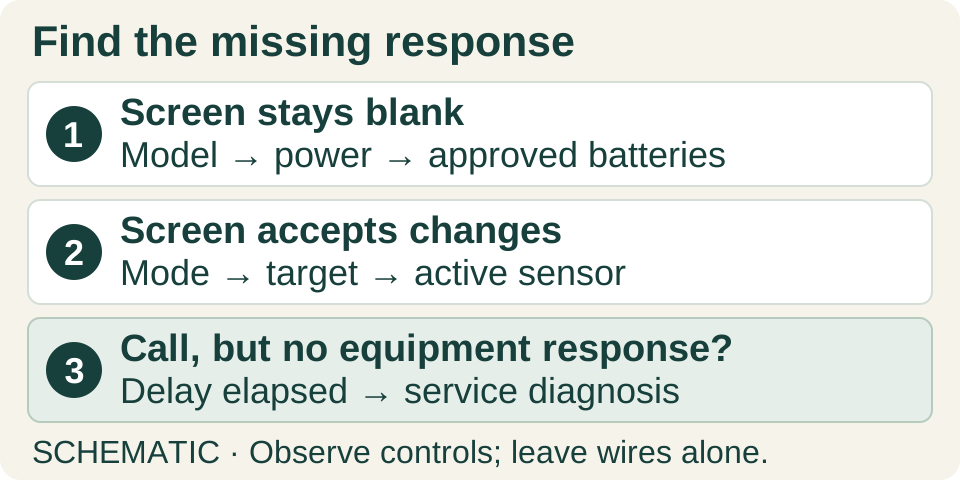
Enlarge diagram
Swipe across to see the rest of the diagram.
Find the point where the response stops
Have the exact thermostat model, its owner instructions and a phone for screen photos nearby. Find the model in the app, a visible label or your paperwork before removing anything. Note whether the trouble followed a power outage, battery change, new thermostat installation or schedule change.
Scroll across to read every column.
| What you observe | Next check | What it tells you |
|---|---|---|
| Screen wakes and responds | Use the setting checks below. | The dark screen may have been asleep. |
| Screen stays blank | Check the model’s power source and approved batteries. | This is a power/display problem until narrowed down. |
| Screen is lit; setting will not change | Look for a lock, limit or frozen control. | Power to the display is not the same as working controls. |
| Setting changes; equipment stays quiet | Read the call/delay message and time the wait. | An accepted setpoint does not prove equipment operation. |
| Local control works; app does not | Check the app’s offline status and help codes. | Follow connectivity troubleshooting before replacing hardware. |
For a blank screen, match the power source first
Use the normal wake action for your model: approach, tap, press or turn its control. Look for faint numbers or a status light, and record any message. A display that wakes and accepts changes belongs in the settings checks, not the dead-battery branch.
Battery instructions are not interchangeable. Honeywell Home’s X2P specifies AA alkaline cells. The product named Nest Thermostat uses two 1.5 V AAA alkaline batteries; Nest Thermostat E and Nest Learning Thermostat models have sealed rechargeable batteries that users should not replace. A smart thermostat can have batteries and still depend on HVAC wiring for reliable power.
- If your model has user-replaceable batteries, follow its battery-access instructions, fit fresh cells of the specified type and check the +/− marks. Use only the designated drawer or removable display; do not loosen the wired base or pry open a control you cannot identify.
- For a wired or rechargeable model, note any recent outage and visually check the labeled HVAC breaker and external service-switch position. Look from outside for an equipment door left ajar after maintenance. Report a tripped breaker or uncertain switch position rather than cycling it. Do not open equipment panels, replace internal fuses or bypass a door switch.
- If the correct batteries restore the display, verify the mode, time and setpoint before testing operation. If the screen stays dead, or rechargeable power repeatedly runs low, stop at that result and contact support or an HVAC technician. Repeated charging or resetting does not establish that the underlying power fault is fixed.
Make one clear request at the thermostat
Work at the wall so an app connection cannot obscure the result. Test only the heating or cooling mode appropriate for current conditions and your equipment’s operating instructions. Do not switch to emergency heat as a general test.
- Photograph the current display. Identify the measured room temperature separately from the target temperature, sometimes labeled setpoint or “heat to.” Choose Heat for a heating check or Cool for a cooling check; Off will not make that ordinary call.
- Set heating above the measured temperature, or cooling below it. As an illustrative check, a room reading of 68°F with a 72°F heat target requests warming; a 68°F heat target may already be satisfied. There is no need to push the setting to its maximum.
- Look for the model’s indication that it is calling for equipment. Record the exact words or icon. On the X2P, HEAT ON and COOL ON identify calls; on X7S/X7B, “heating to” means a heat call, while “heat to” shows the target when it is not calling. A click or screen message is an observation, not proof that the equipment started.
- If a delay appears, leave the setting alone and time it. Honeywell Home documents up to five minutes for normal compressor protection. Use your model’s stated interval if different. A delay that persists beyond that interval, or restarts repeatedly, needs its alert/power problem investigated rather than more button presses.
If the setting will not stick, check what controls it
A lock symbol or a temperature that stops changing at a fixed limit is different from a frozen screen. For example, X7S/X7B has Screen lock and Temperature limits menus. Use the owner’s permitted controls; in a rental or managed building, ask whoever controls those settings rather than defeating a lock.
If the temperature changes back later, compare that time with the day’s schedule, the next scheduled event and any hold end time shown. On a smart model, also inspect Away/Eco behavior and connected household automations. Change the specific setting responsible, then check again at the next event. A temporary change is not necessarily a saved schedule edit.
Nest features differ by generation: its schedule documentation separates Nest Thermostat, Thermostat E and Learning models. Follow the page for your product rather than searching for a menu it does not have.
For a genuinely frozen control, use the manufacturer’s model-specific restart instructions once. Google distinguishes a restart, which preserves settings, from a reset, which may erase them. Do not factory-reset an unfamiliar HVAC setup as the first experiment. If the controls freeze again, report the recurrence.
Check which room the thermostat is measuring
With a remote sensor, the temperature driving the equipment may come from another room. Read the active sensor name and its temperature in the app, then compare that reading with the target. Check whether a sensor schedule will change the selection later.
For example, a hallway may feel cold while the selected bedroom sensor has already reached the heating target. On compatible Nest models you can select an appropriate sensor; a manual selection may be replaced by the next sensor schedule. Nest Learning Thermostat (4th gen) can average multiple selected sensors. Do not apply the older one-active-sensor rule to that model.
A thermometer in another room is not a direct check of the active sensor. Establish which location the system is using before changing any calibration offset to make the numbers agree.
A new thermostat needs a compatibility check
If the problem started with replacement, gather the old and new model numbers, equipment type and any installation photos already available. Confirm whether the system is conventional heat/AC, a heat pump, or a boiler, and whether auxiliary heat or multiple stages are involved. Ask the installer to verify that combination against the new model’s compatibility documentation.
Nest models generally serve compatible 24 V systems; that does not make them direct replacements for 120/240 V line-voltage controls, millivolt heaters or proprietary communicating controls. Even within one brand, supported stages and power requirements differ. Some installations require a C wire or an approved power accessory.
Use existing records for this check. Do not remove a cover to investigate unknown voltage. If an installation photo is used with a compatibility checker, terminal labels matter; wire color alone is not reliable. Leave rewiring, power accessories and installer configuration to a qualified installer. Never jump terminals or probe energized wiring to “prove” the thermostat works.
Decide whether the thermostat check is finished
A useful success check has three parts: the intended setting remains active, the equipment responds after its allowed delay, and the controlling temperature trends toward the target. Restore your usual schedule or target afterward. A fan running by itself does not establish heating or cooling; on systems with fan controls, On or circulation settings may run it separately.
If a call is displayed but heating or cooling never arrives, give the HVAC technician that distinction. The unresolved fault could be in controls, wiring or equipment; replacing the thermostat on that evidence alone is guesswork. Furnace ignition, airflow failures and refrigerant work are outside this checklist.
Off does not always mean no heating or cooling: Nest Safety Temperatures can still call for protective operation. Read the thermostat’s equipment status and alerts, and check the model’s instructions before calling Off-mode operation a fault. Do not disable protective settings to test it. If operation remains unexplained, stop testing and arrange service. If heating or cooling is uncontrolled or unsafe, turn off the equipment at its known, clearly labeled power disconnect if safe to do so, and seek prompt service; do not wait through repeated resets.
Save the thermostat model and the observed result.
Open care recordsSources
- Resideo / Honeywell Home: X2P Installation and User Manual: Troubleshooting and Support ↗
X2P battery chemistry, display readings and equipment-call indications; other models use different batteries and screen labels.
- Google Nest: Batteries for Nest products ↗
Battery types for Nest Thermostat, Thermostat E and Learning models; sealed rechargeable batteries are not user-replaceable.
- Google Nest: Troubleshoot when your thermostat won’t turn on ↗
Sleeping displays, system-supplied power and recurring battery depletion. Follow the generation-specific section for status lights.
- Resideo / Honeywell Home: X7S & X7B Installation and User Manual: Troubleshooting and Support ↗
X7S/X7B screen locks, temperature limits, call messages, independent fan operation and unintended equipment operation.
- Google Nest: Nest thermostat temperature schedules ↗
Schedule and Eco behavior, with separate instructions for each Nest thermostat family.
- Google Nest: How to change Nest Temperature Sensor settings ↗
US/Canada sensor compatibility, active sensor selection, schedules and 4th-generation Learning multi-sensor averaging.
- Google Nest: Nest thermostat compatibility ↗
Nest system compatibility, voltage and stage limits, C-wire requirements and terminal identification.
- Google Nest: Troubleshoot your Nest thermostat is offline ↗
Distinguishes lost app connectivity from a blank or unresponsive thermostat; local temperature control can remain available.
- Google Nest: Restart or reset a Nest thermostat ↗
Restart versus reset, preserved or erased settings, and model-specific recovery of frozen controls.
- Resideo / Honeywell Home: Why is my thermostat display showing wait, waiting for equipment, or flashing cool on? ↗
Honeywell Home compressor-protection delays up to five minutes and escalation for a persistent delay.
- Google Nest: Nest thermostat Off mode ↗
Safety Temperatures can still activate heating or cooling in Off mode. Protective operation is distinct from an unexplained or uncontrolled run.